
If your updated maps are not visible on your MG navigation system after completing a map update, restoring the navigation settings may help the system recognise the new map content.
1. Restore the navigation settings
After installing a map update, your navigation system may need to refresh its settings before the updated maps become available.
To do this:
- Open the navigation software on your MG system.
- Go to the Settings menu.
- Find and select Factory Reset.
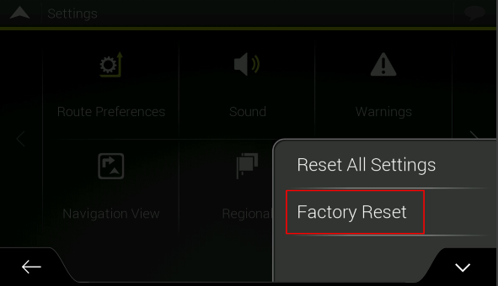
- Follow the on-screen instructions to complete the reset.
- Restart the navigation and check whether the updated maps are now available.
Important: A factory reset may remove your saved destinations, favourites, and personalised navigation settings.
2. Check whether the updated maps are available
After completing the reset, check whether your navigation system displays the updated map content.
If the maps are still not visible, please try repeating the factory reset a few more times.
Need help?
If the updated maps are still not available after following these steps, click the Contact us button at the top of the page for further assistance.
Please include:
- Your MG vehicle model and year
- A short description of the problem
- A photo of the navigation screen, if possible
Our support team will help you investigate the issue.